Create and test an API key
Issue a revocable Gateway key, then make one real model request before configuring a harness.
Create the key
Open API keys, select Create API key, and name it after the machine or harness that will use it—for example, Work laptop.
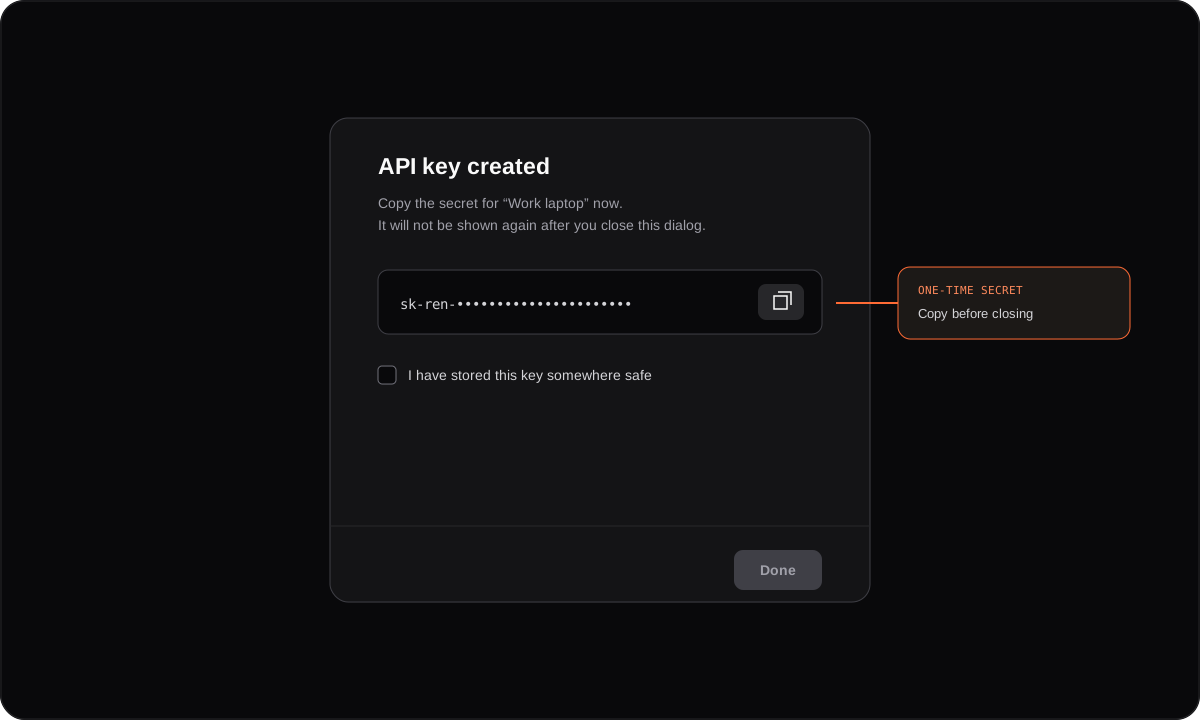
Store it before closing the dialog
Save the key in your password manager or the harness configuration described in the next guide. Check I have stored this key somewhere safe, then select Done.
Do not put the key in a repository. If it is exposed, revoke it and create a replacement.
Run your first request
The Gateway host is https://llm.useren.ai. Choose the test matching the provider plan you connected.
Claude plan
export REN_INFERENCE_KEY="<YOUR_KEY>"

curl https://llm.useren.ai/v1/messages \
  --header "Authorization: Bearer $REN_INFERENCE_KEY" \
  --header "Content-Type: application/json" \
  --data '{
    "model": "anthropic/claude-sonnet-5",
    "max_tokens": 64,
    "messages": [{"role": "user", "content": "Reply with: Ren is ready"}]
  }'
ChatGPT plan
export REN_INFERENCE_KEY="<YOUR_KEY>"

curl https://llm.useren.ai/v1/responses \
  --header "Authorization: Bearer $REN_INFERENCE_KEY" \
  --header "Content-Type: application/json" \
  --data '{
    "model": "openai/gpt-5.6-terra",
    "input": "Reply with: Ren is ready"
  }'
What success looks like
The response has a successful HTTP status and contains Ren is ready. The provider connection’s usage and last-used time update shortly afterward.
A 401 means the key is missing, mistyped, or revoked. A model-not-found response usually means the model does not match the connected plan.